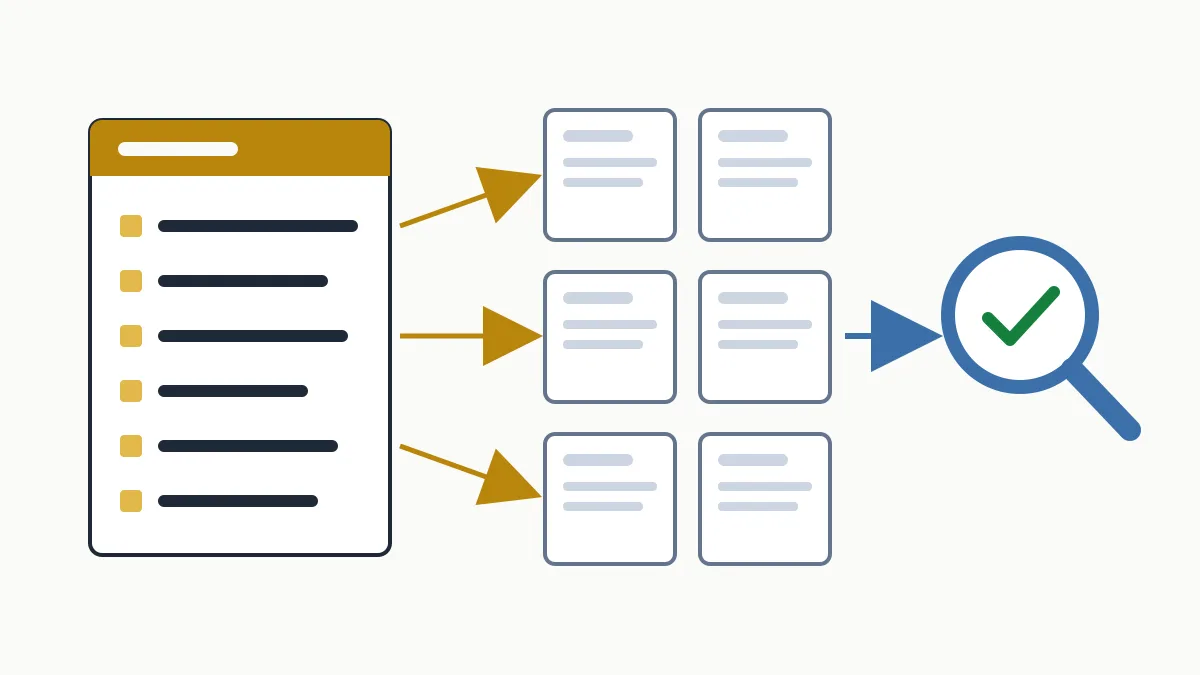
The robots txt file (written robots.txt) is a plain text file placed at the root of your domain that tells search engine crawlers which parts of the site they may crawl and which they may not. It manages crawling; it does not hide pages: a blocked URL can still show up in Google if another site links to it.
A small business almost always needs a four-line robots.txt and nothing more. The usual problem is not a missing file but one line too many: it is common to find whole sites out of Google because of a Disallow: / left behind after a redesign. Below you get the syntax, examples you can copy as they are, and the mistakes worth checking today.
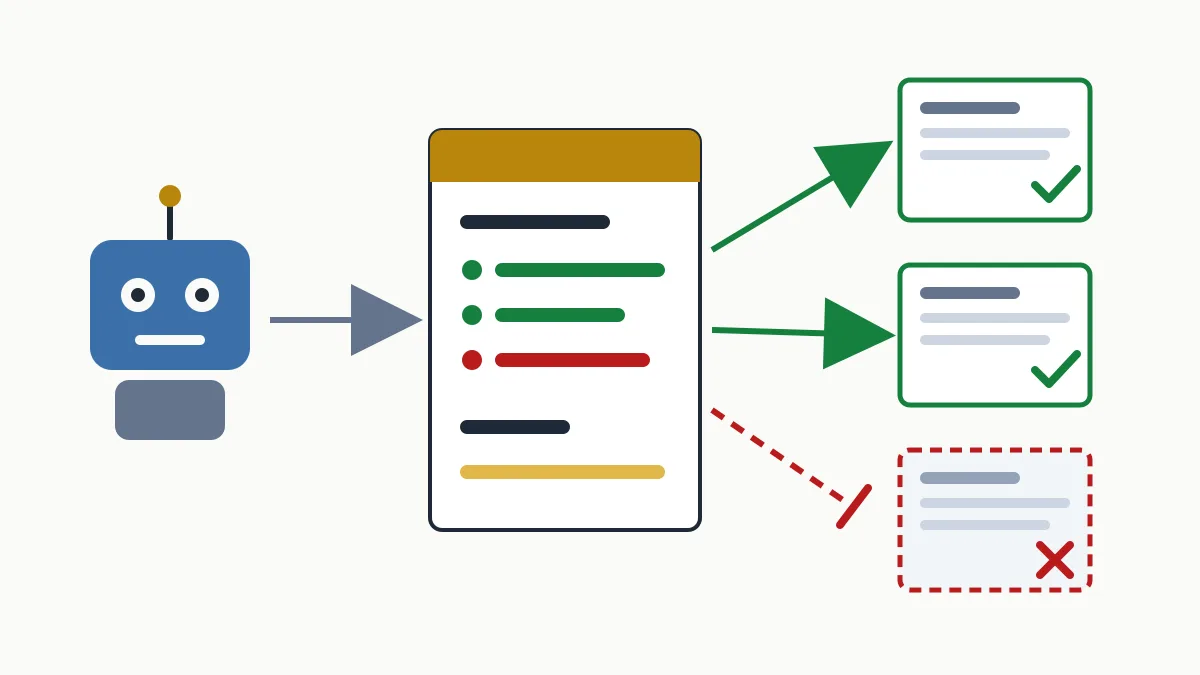
What robots.txt is and what it is for
It is the first thing a crawler requests when it reaches your site: before visiting any page, Googlebot fetches https://www.example.com/robots.txt and applies the rules it finds. It is a code of conduct (the “robots exclusion protocol”), not a technical barrier.
What it is really for:
- Keeping crawlers from wasting time on areas with no search value: admin panel, cart, internal search, filters and sort orders that generate thousands of near-identical URLs.
- Reducing server load when a crawler hits those areas too hard.
- Pointing to your sitemap.
What it is not for:
- It does not remove pages from Google's index.
- It does not protect private content: the file is public and anyone can read it, so listing
/internal-documents/there is pointing at them. - It does not stop malicious bots, which simply ignore it.
noindex tag or password-protect it, and do not block it in robots.txt: if Google cannot get in, it cannot read the noindex either.If your problem is the opposite one (pages that should appear and do not), start by checking in Search Console whether those pages are being crawled at all. The full walkthrough is in our diagnosis of why Google is not indexing your website.
Where it goes and how Google reads it
- At the root of the host, with that exact lowercase name:
/robots.txt. Inside a folder (/blog/robots.txt) it has no effect. - One per host and protocol. The file on
www.example.comdoes not apply toshop.example.com: each subdomain needs its own. - Plain text in UTF-8. No Word documents, no HTML. Google only reads the first 500 KiB.
- Google caches it, normally for up to 24 hours: a change is not applied instantly.
- If it does not exist (404), Google crawls everything. Having no robots.txt is not an error. What is serious is a 5xx response: Google takes it to mean it cannot crawl the site and holds back.
Robots.txt syntax: the four directives
The file is organised in groups. Each group starts with one or more User-agent lines followed by its Disallow and Allow rules.
| Directive | What it does | Example |
|---|---|---|
User-agent | Names the crawler the group applies to. The asterisk means “all”. | User-agent: * |
Disallow | Path that crawler must not crawl. | Disallow: /cart/ |
Allow | Exception inside a blocked path. | Allow: /wp-admin/admin-ajax.php |
Sitemap | Absolute URL of the sitemap. Sits outside the groups. | Sitemap: https://www.example.com/sitemap.xml |
Reading rules that prevent nearly every scare:
- Paths start with
/and are case-sensitive:/Photos/and/photos/are different paths. - Matching is by prefix:
Disallow: /blogalso blocks/blog-old/and/bloggers.html. For a folder, end with a slash:Disallow: /blog/. *matches any sequence of characters and$marks the end of the URL.- When an
Allowand aDisallowconflict, Google applies the most specific rule (the longest path) and, on a tie, the least restrictive one. - Each crawler obeys only the most specific group that names it. If you create a group for
Googlebot, Googlebot stops reading the*group. - An empty
Disallow:means “everything allowed”. Lines starting with#are comments.
The Sitemap directive is a single line with the full address of the file; how to build and submit it is covered in the post on the XML sitemap. Two directives you will see in many tutorials that Google does not support: Crawl-delay and Noindex inside robots.txt.
Robots.txt examples to copy
Replace www.example.com with your domain and adapt the paths to your own site.
Corporate site: allow everything
User-agent: *
Disallow:

Sitemap: https://www.example.com/sitemap.xml
This is the right file for a law firm in Girona or a workshop in Sabadell with thirty pages: there is nothing to keep away from crawlers.
WordPress
User-agent: *
Disallow: /wp-admin/
Allow: /wp-admin/admin-ajax.php
Disallow: /?s=
Disallow: /search/

Sitemap: https://www.example.com/wp-sitemap.xml
If you upload no file, WordPress serves a very similar virtual one. Do not block /wp-content/ or /wp-includes/: that is where the CSS and JavaScript live that Google needs to see the page as a visitor does.
Online shop
User-agent: *
Disallow: /cart/
Disallow: /checkout/
Disallow: /my-account/
Disallow: /search/
Disallow: /*?sort=
Disallow: /*&sort=

Sitemap: https://www.example.com/sitemap.xml
The two wildcard lines cover the sort parameter whether it comes first (?sort=) or after another one (&sort=).
Block a file type or a specific crawler
User-agent: *
Disallow: /*.pdf$

User-agent: Google-Extended
Disallow: /
The first rule prevents crawling of any URL ending in .pdf. The second uses Google-Extended, the token Google provides so you can decide whether your content is used for its generative AI models; it does not affect how you appear in Search.
Block everything (staging only)
# Staging environment only. Do not deploy to production.
User-agent: *
Disallow: /
This is the file that causes the most grief. If you use it on a staging site, add it to the launch checklist; in an SEO migration it is one of the first things checked on launch day.
Common robots.txt mistakes
- The
Disallow: /inherited from staging. The new site goes live with the development file and organic traffic fades out little by little. - Using it to remove pages from Google. The blocked URL can stay indexed, with no description, because Google can no longer read its content or its
noindex. - Blocking CSS, JavaScript or images. Google renders pages; if it cannot load the resources, it evaluates a broken version.
- Forgetting the trailing slash.
Disallow: /servicetakes the whole of/services/with it. - Putting it in the wrong place. In a subfolder, under another name (
Robots.TXT) or only on the non-wwwdomain when the site lives onwww. - Believing it hides information. Anyone can read the paths you write there.
- Adding a group for one crawler and forgetting to repeat the general rules. That crawler stops applying the
*group.
How to check your robots.txt in 5 minutes
- Open
yourdomain/robots.txtin the browser and read it. If you seeDisallow: /underUser-agent: *, you have found the problem. - In Google Search Console, under the property settings, open the robots.txt report: it shows which file Google fetched, when, and whether it found lines it does not understand.
- Run an important page (a service, a category) through URL Inspection: it states whether crawling is allowed.
- In the page indexing report, review the “Blocked by robots.txt” and “Indexed, though blocked by robots.txt” reasons. They should contain only what you chose to block.
If you are not yet comfortable with the tool, follow the guide on how to use Google Search Console step by step. And if you would rather have us review it along with the rest of your technical SEO, request the free initial analysis.
Frequently asked questions
Is a robots.txt file mandatory?
No. If the file does not exist, Google crawls the whole site as normal. It is worth having one to point to the sitemap and to exclude areas such as the cart or internal search from crawling.
Does robots.txt stop a page from appearing in Google?
No. It stops Google from crawling it, but the URL can still appear if other pages link to it. To keep it out you need noindex, and Google must be able to crawl the page to see it.
How long does Google take to apply a change?
Google keeps a copy of the file and normally refreshes it within 24 hours. From the robots.txt report in Search Console you can ask for it to be re-read sooner.
Does Crawl-delay make Google crawl more slowly?
No, Google ignores that directive. Some other search engines honour it, but it has no effect on Googlebot.
In short
A good robots.txt is short: it allows everything you want to rank, excludes what adds nothing and points to the sitemap. Check yours now, especially if the site was redesigned recently. And if you want a second opinion on how your site is crawled and indexed, the initial analysis is free and tells you where to start.